


Managing your shop integrations
Last updated onThe Integrations page is where you connect Listadum to the other tools your shop uses. You can use it to keep your Etsy data synced, connect social channels for promotion, import order details from print on demand providers, and bring shipping costs into Listadum.
You can find it from your shop dashboard by opening Settings, then selecting Integrations.

Before you start
Only shop owners and admins can configure most integrations. If you do not see a setup button, or if Listadum says that only admins and owners can configure integrations, ask a store admin to connect the account for you.
Connected integrations show a green Connected status. Depending on the provider, you may also see actions like Re-configure integration, Refresh orders, or Import shipping costs.
Etsy marketplace connection
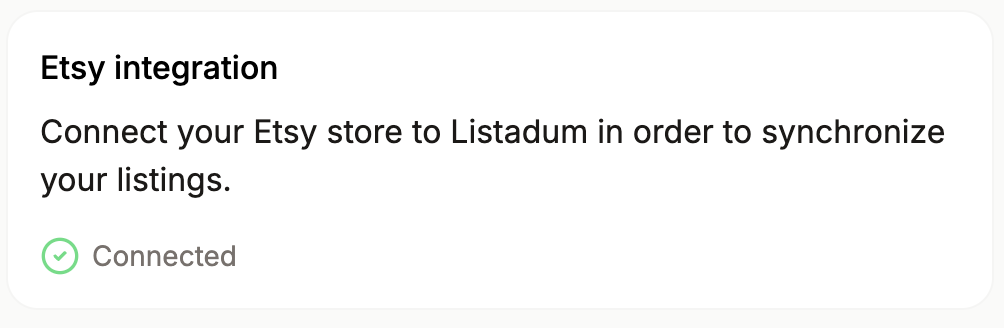
The Etsy integration connects your Etsy shop to Listadum. This is the core connection Listadum uses to synchronize your listings.
If Etsy is not connected, click Configure integration and follow the Etsy authorization flow. Once Etsy is connected, the card will show Connected.
If there is a problem with the Etsy connection, Listadum displays the error inside the Etsy card. Use that message to understand what needs to be fixed before synchronization can continue normally.
Social integrations
Pinterest integration
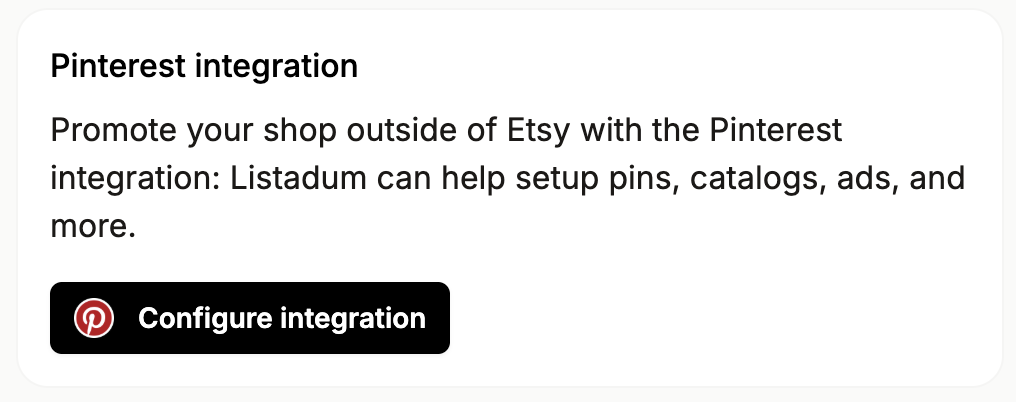
Connect Pinterest if you want to promote your shop outside Etsy. Listadum uses this connection for Pinterest promotion features, including pins, catalogs, ads, and related workflows.
If Pinterest is not connected and you are an owner or admin, select Configure integration and complete the Pinterest authorization flow.
If Pinterest is already connected, the card shows Connected. Owners and admins can select Re-configure integration to connect a different Pinterest account.
Before changing the connected Pinterest account, Listadum warns you that switching accounts may delete existing Listadum pins that are not linked to the new account.
Print on demand integrations
The Print on demand section helps Listadum retrieve order information from your production providers.
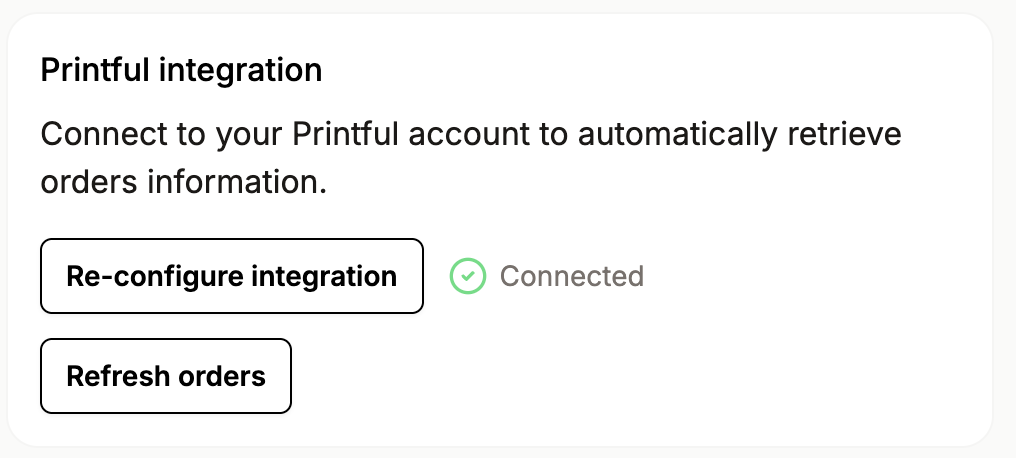
Printful and Printify both use an authorization flow. Click Configure integration, connect your provider account, then return to Listadum. Once connected, the card shows Connected and gives you a Refresh orders button so you can manually pull the latest order information.
Gelato works a little differently. Instead of an authorization flow, it uses an API key. Click Configure integration, create an API key from your Gelato dashboard, paste it into Listadum, then save. Once connected, you can also use Refresh orders.
Owners and admins can reconfigure Printful or Gelato if the connected provider account or API key needs to change.
Shipping integration
The Shipping section is used to connect ShipStation and import shipping costs into your Listadum orders.
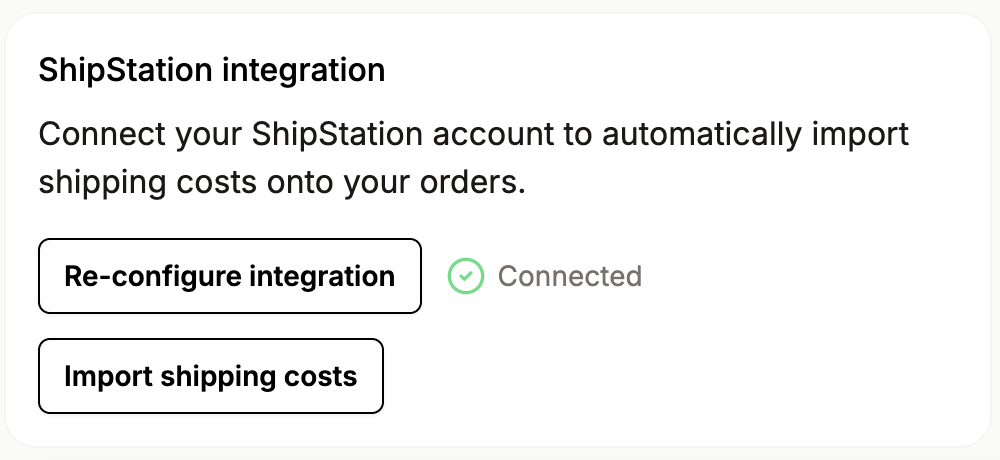
ShipStation uses an API key and API secret. Click Configure integration, create the credentials from your ShipStation API settings, choose V1 from the version dropdown in ShipStation, then paste the key and secret into Listadum.
After ShipStation is connected, click Import shipping costs to manually import shipping costs onto your orders. This can take a few minutes.
If something looks wrong
First, make sure you are looking at the right shop. Integrations are configured per shop, so connecting a provider on one shop does not automatically connect it on another.
If you expected to see a setup button but cannot configure the integration, check whether you are an owner or admin for that shop.
If an integration is connected but data is not updating, use the available refresh action when there is one. For Etsy errors, read the message shown in the Etsy card, then reconnect the integration if needed.