


Managing your billing settings
Last updated onThe Billing page lets shop owners and admins manage the subscription and billing information for a shop.
From this page, you can:
View your current subscription status
Open the Stripe billing portal
View or edit the billing address used on invoices
Review AI credit history, when credits are enabled for the shop
View and download past invoices
Pause, resume, cancel, or reactivate a subscription when these actions are available
Opening the Billing page
From your dashboard, open Store Settings, then click Billing.
Only users with the Owner or Admin role can access billing settings. If you do not have access, Listadum shows a message saying that only admins and owners can access billing settings.

Subscription status
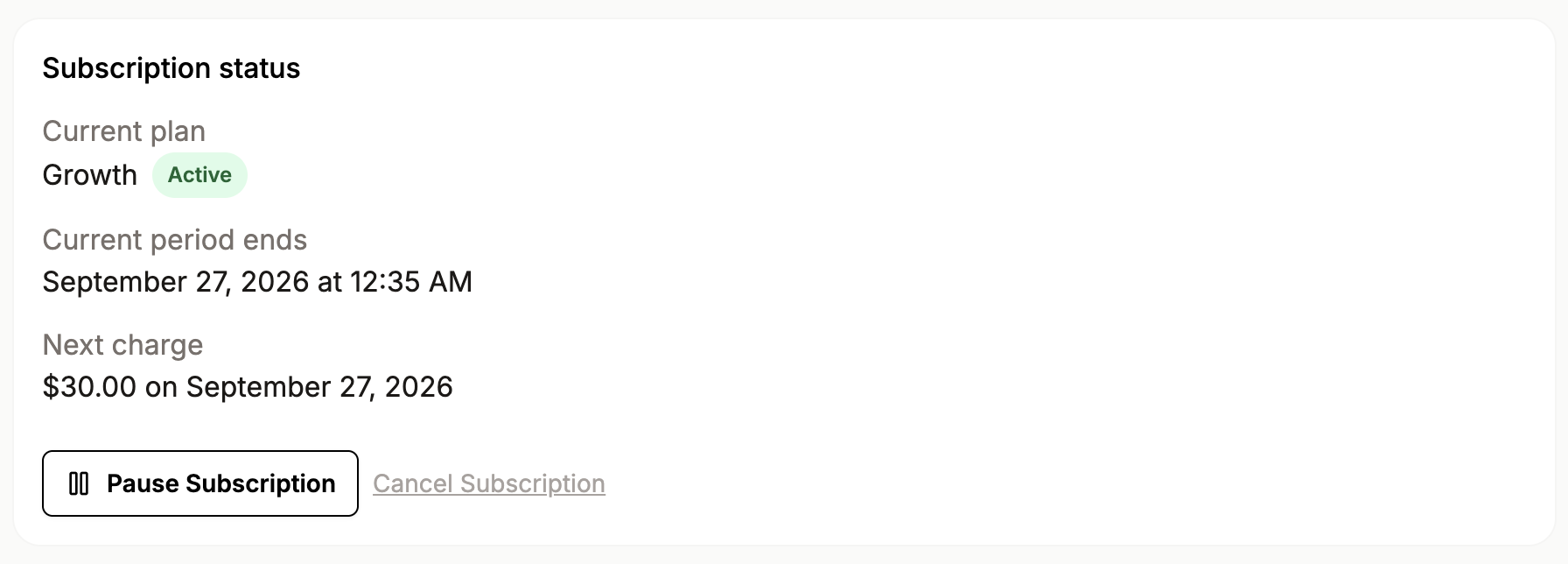
The Subscription status card shows the current state of your subscription.
Depending on your subscription, you may see:
Current plan
Subscription status
Current period end date
Resume date, if the subscription is paused
Cancellation date, if cancellation is scheduled
Next charge amount and date, when available
Possible status labels include:
Active
Past Due
Paused
Pause Scheduled
Cancel Scheduled
Canceled
Incomplete
Unpaid
Available actions depend on your current subscription state.
Pausing a subscription
If your subscription is active, you may see a Pause Subscription button.
When you click it, you can choose a pause duration:
1 month
2 months
3 months
Listadum explains that:
The pause takes effect at the end of the current billing period
You will not be charged during the pause period
Your data remains saved
You lose access to Pro features while paused
The subscription resumes automatically after the pause period
After confirming, Listadum shows the pause effective date and the resume date.
Resuming a paused subscription
If your subscription is paused or has a pause scheduled, the Subscription status card shows a Resume Subscription button.
Click Resume Subscription to remove the pause.
Canceling a subscription
If your subscription is active and cancellation is not already scheduled, the Subscription status card shows a Cancel Subscription link.
The cancellation flow asks for the main reason you are canceling. The available reasons are:
I am not using it enough
I am switching to another tool
I am closing my Etsy shop
It is too hard to use
It is missing features I need
It is too expensive
Other reason
Depending on the reason selected, Listadum may ask for more feedback or show support options before final confirmation.
When cancellation is confirmed, the subscription is scheduled to cancel at the end of the current billing period.
Reactivating a subscription
If your subscription is scheduled to cancel, the Subscription status card shows a Reactivate Subscription button.
Click Reactivate Subscription to remove the scheduled cancellation.
Billing portal
Listadum uses Stripe to manage subscriptions.
The Billing portal section lets you open Stripe to manage billing details. In the Stripe portal, you can:
View and update subscription details
Change your plan
Change your billing period
Update your payment method
View invoices and receipts
Click Open billing portal to access it.
If your shop is on the legacy Pro plan, Listadum shows a warning explaining that Pro is no longer available for purchase and that the equivalent current plan is Growth.
Billing address
The Billing address card shows the address used on your invoices.
If no address is saved, click Add billing address. If an address already exists, click Edit.
The form includes:
Full name
Company, optional
Address line 1
Address line 2, optional
City
State or province
Postal code
Country
Tax ID, optional
The address is saved and then displayed in the Billing address card.
Credit history
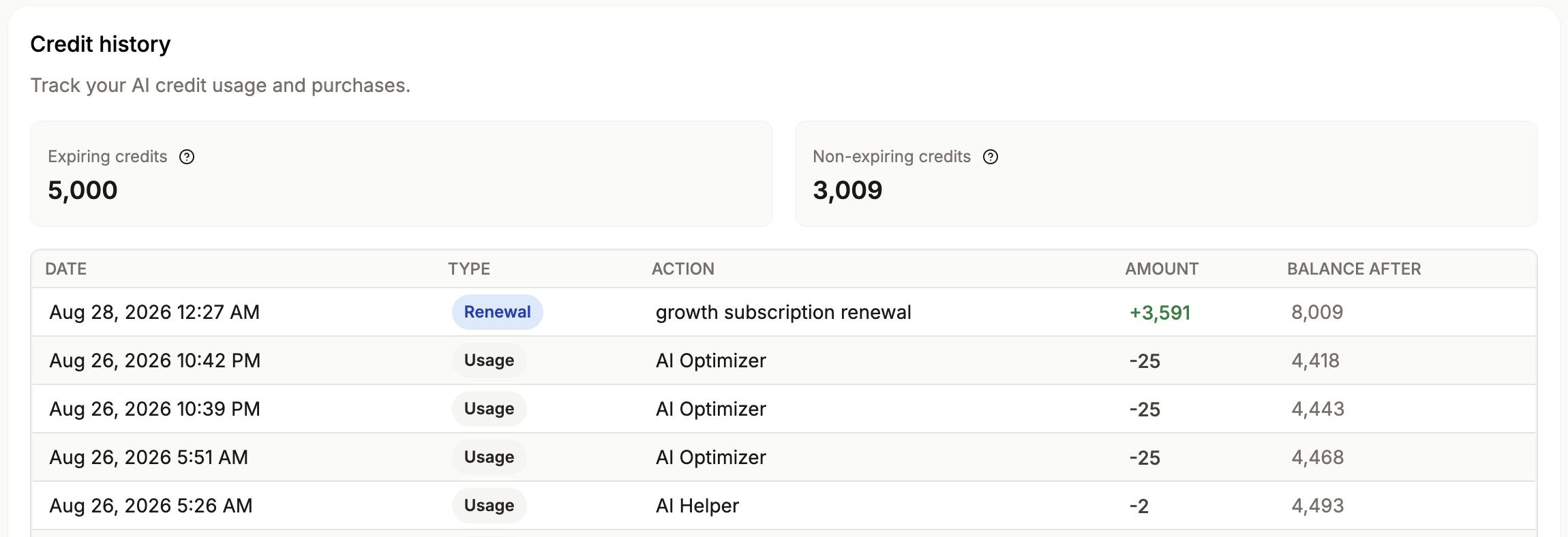
If AI credits are enabled for your shop, the page shows a Credit history section.
This section shows:
Expiring credits
Non-expiring credits
Credit transaction history
Expiring credits are subscription credits that reset each billing cycle. Non-expiring credits are purchased credits that do not expire.
Billing history
The Billing history section shows past invoices.
For each invoice, you can see:
Invoice number
Date
Description
Amount paid
Status
Download button, when a PDF is available
Click Download to open the invoice PDF.
Possible invoice statuses include:
Paid
Open
Draft
Uncollectible
Void
If there is no billing history yet, Listadum shows an empty state.
Frequently Asked Questions
Who can access billing settings?
Only shop owners and admins can access billing settings.
Can I update my payment method?
Yes. Click Open billing portal and update your payment method in Stripe.
Can I change my plan?
Yes. Click Open billing portal to change your plan or billing period in Stripe.
Where can I find invoices?
Invoices appear in the Billing history section. If a PDF is available, click Download.
Why do I not see Credit history?
The Credit history section only appears when AI credits are enabled for your shop.
What happens when I pause my subscription?
The pause is scheduled for the end of the current billing period. You are not charged during the pause period, your data remains saved, and the subscription resumes automatically after the selected duration.