


Storing and reusing images, videos and files with the Media Library
Last updated onThe Media Library is one place to keep the images, videos and files you use across your listings. Upload something once, then pull it into any listing without hunting through your computer, your phone, or a cloud drive.
It starts empty. Nothing is imported from your Etsy shop automatically, so what's in your library is what you put there.
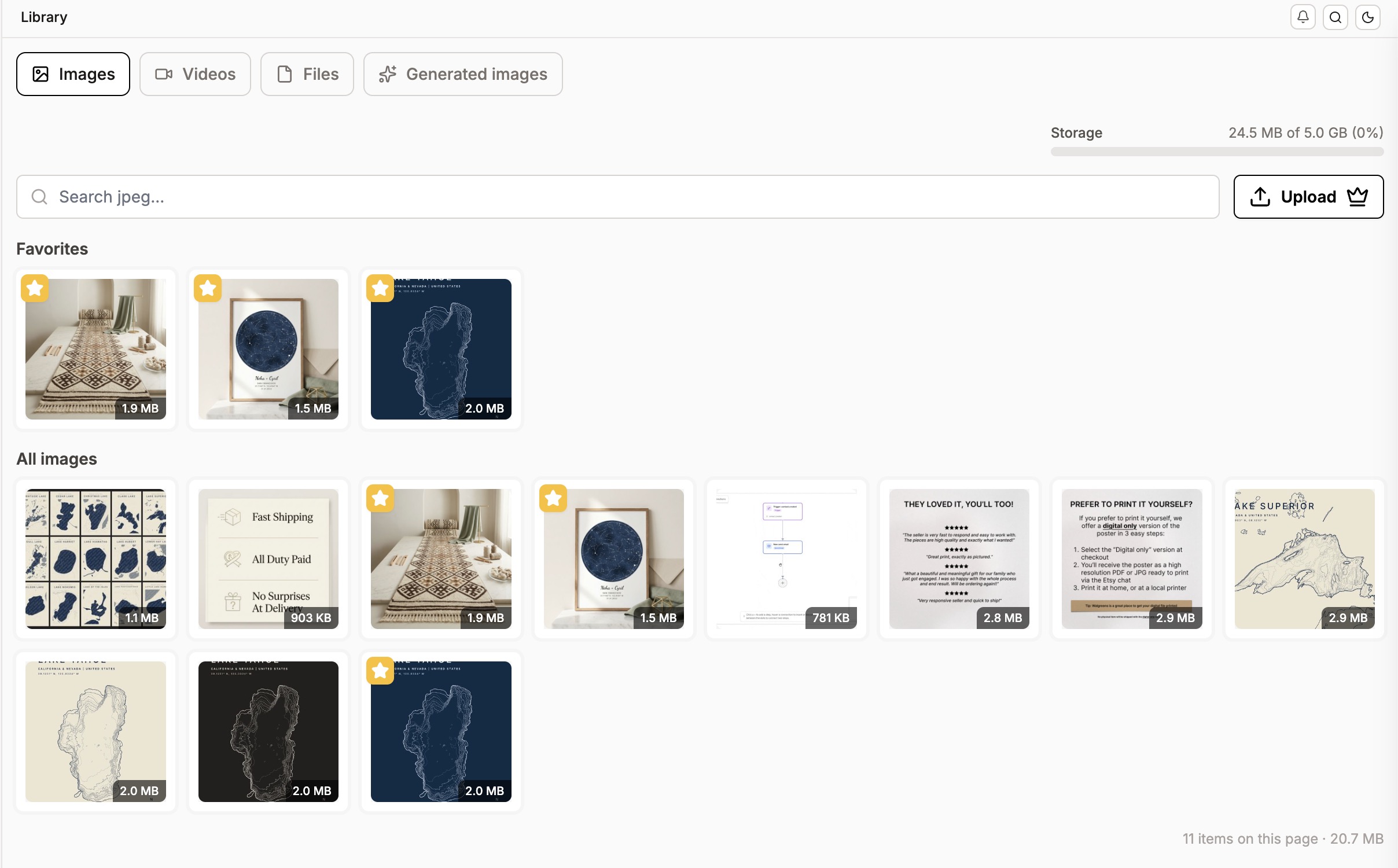
Where to find it
Open "Library" from the left sidebar to browse and manage everything you've saved.
You can also open it while you work on a listing. In the Listing Editor, click the library button in the images section, the videos section, or the digital download files section, and your library opens right there so you can pick what you need.
One library per shop
Each shop gets its own library and its own storage. If you manage several shops in Listadum, you'll see a separate library for each one.
There's no way to copy or move media between your shops at the moment. If you use the same photo in two shops, upload it to both.
Everyone on your team has access to the shop's library.
What you can store
Type Size limit per file Formats
Images 20 MB JPEG (.jpg, .jpeg), PNG (.png), GIF (.gif)
Videos 100 MB MP4 (.mp4), MOV (.mov)
Files 20 MB Any type, except executable files
For security, executable files are rejected: .exe, .msi, .bat, .cmd, .com, .scr, .sh, .app, .dmg, .apk, .deb and .bin.
How much storage you get
Total storage depends on your plan:
Starter: 1 GB
Growth: 5 GB
Max: 25 GB
Pro: 1 GB
You can see how much you've used at any time from the storage bar at the top of the Library page.
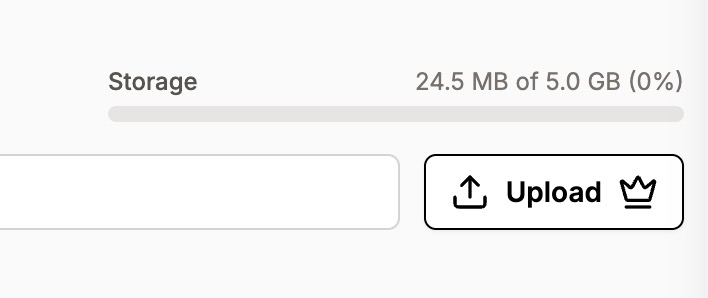
The Media Library is available on Starter and above. On the free plan you can't add media to your library.
Adding media
Upload images, videos or files straight from the Library page, or from the library window when you open it inside the Listing Editor.
There's no built-in way to pull photos from a listing you already have on Etsy. If you want an existing listing photo in your library, download it and upload it like any other file.
Using media in a listing
In the Listing Editor, click the library button in the images, videos or digital download files section, pick what you want, and it's added to the listing. Using the same file in ten listings doesn't cost you ten times the storage. It's stored once.
Favorites
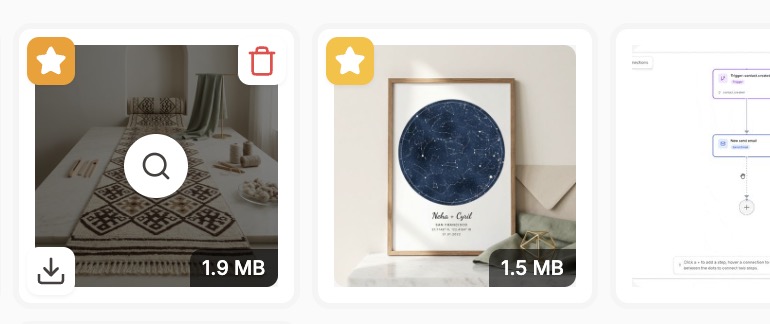
Hover over any image, video or file and click the star to favorite it. Favorites get their own section at the top of the library, in every tab, so the assets you reuse most are always the first thing you see. It's the fastest way to work if you have a handful of photos that go on every listing.
Preview, rename and download
Click any item to open its preview. From there you'll see more information about the file, and you can rename it or download it.
Renaming is worth doing. IMG_4471.jpg tells you nothing six months from now, and makes it really difficult to find the image using search.
Keeping AI-generated images
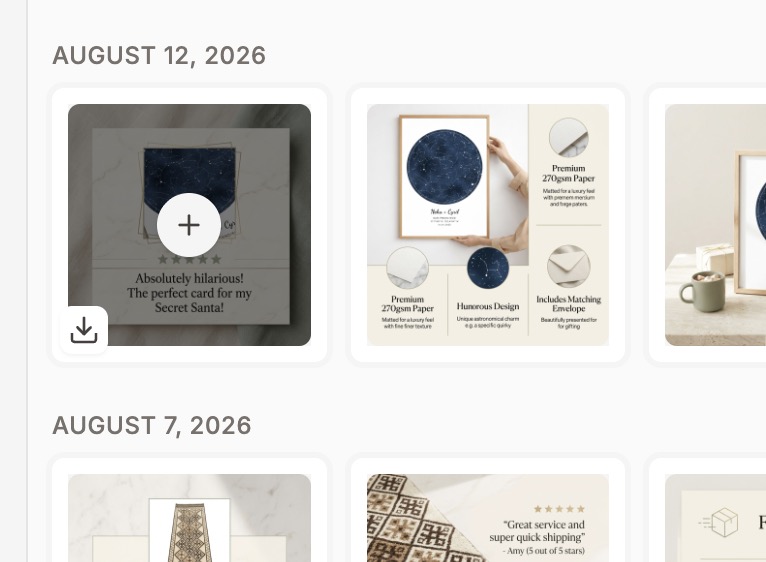
When you generate an image with the AI Photo Editor or the Photo Studio, you save it to your listing as part of that flow. A copy also lands in the Generated images tab of your library.
Images in the Generated images tab are kept for 30 days, then removed. The 30 days start from the moment the image is generated, and we don't send a reminder before it goes. If you want to keep one for good, hover over it and click the + button. That saves it into your image library, where it stays until you delete it.
Two things worth knowing:
Generated images don't count against your storage while they sit in the Generated images tab. Only media you've explicitly added to your library counts.
A generated image disappearing after 30 days does not affect any listing it was already added to. Your listing keeps its own copy of the image. The 30-day limit only applies to the working copy in your library.
Deleting media
Open an item and delete it from there. Deletions are one item at a time for now.
Deleting media from your library does not change your listings. Any listing already using that image, video or file keeps its own copy and stays exactly as it is. The only thing you lose is the ability to reuse that file from your library later.
If you run out of space
When your library is full, new uploads are blocked until you free up space or move to a plan with more storage. AI image generation isn't affected, so you can keep generating images either way.
If you're up against the limit and upgrading isn't the right answer for you, message us. We'll take a look and see what we can do.
If you move to a plan with less storage and your library is over the new limit, nothing is deleted. You keep everything that's already there, you just can't add anything new until you're back under the limit.
If you cancel your subscription, we keep your library untouched for 90 days. After that it's deleted.
Frequently Asked Questions
What can I store in the Media Library?
Images (JPEG, PNG, GIF) up to 20 MB, videos (MP4, MOV) up to 100 MB, and files of any type up to 20 MB, except executables. It's your own library, separate from what's on your Etsy listings, so it starts empty and fills up with what you upload.
Does the Media Library import my existing Etsy photos?
No. It starts empty. You can add your Etsy listing photos to it by downloading them and uploading them to the library, and from then on they're a click away on any listing.
Do AI-generated images count against my storage?
Not while they're in the Generated images tab. They only count once you save one to your library with the + button.
What happens to AI-generated images after 30 days?
They're removed from the Generated images tab. Listings that already use the image are not affected, because your listing keeps its own copy. To keep an image in your library for good, hover over it and click the +.
If I delete an image from my library, does it disappear from my listings?
No. Your listings keep their own copy. Deleting from the library only removes it from the library.
Can I share media between my shops?
Not at the moment. Each shop has its own library and its own storage, so you'd need to upload the file to each shop.
Can my team use the Media Library?
Yes. Everyone on your team has access to the shop's library.
What happens to my library if I cancel?
We keep it untouched for 90 days, then it's deleted.