


Editing listings with the Listing Manager
Last updated onThe Listing Manager is your home base for everything you do to your listings. It opens on a view of all your listings and is the jumping-off point for the Listing Editor, Bulk Edit, Bulk Copy, Export CSV, Templates, Snippets, and Profiles.
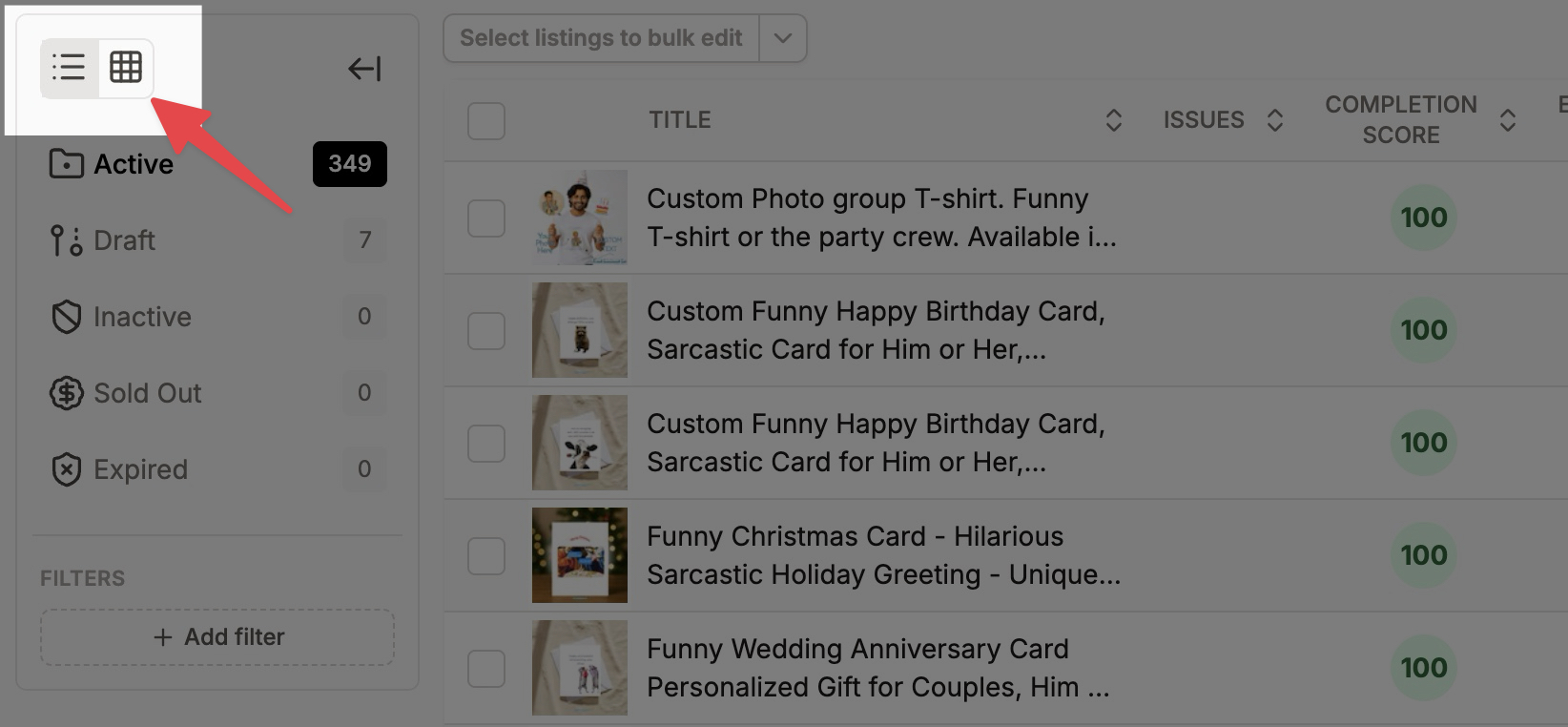
Table or grid
Switch between a table view and a grid view. The table shows the most information, so it's the one to use when you're working, not just browsing. The grid is a quicker visual scan but contains less informations.
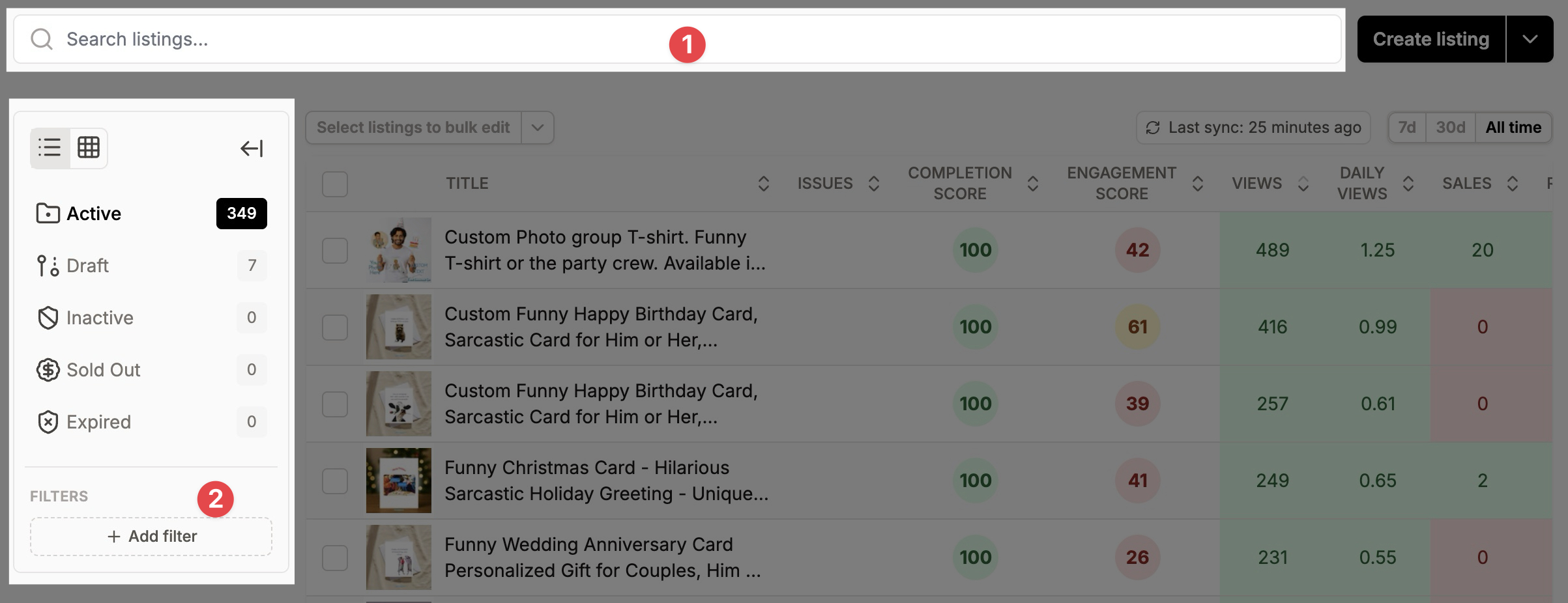
Search and filter
Search by text (for example a word in the title, or a SKU) and filter your listings by status (active, draft, sold out, expired, inactive), tags, sections, and more. This is how you find the exact set of listings you want to work on before you edit or bulk-edit them.
See your stats at a glance
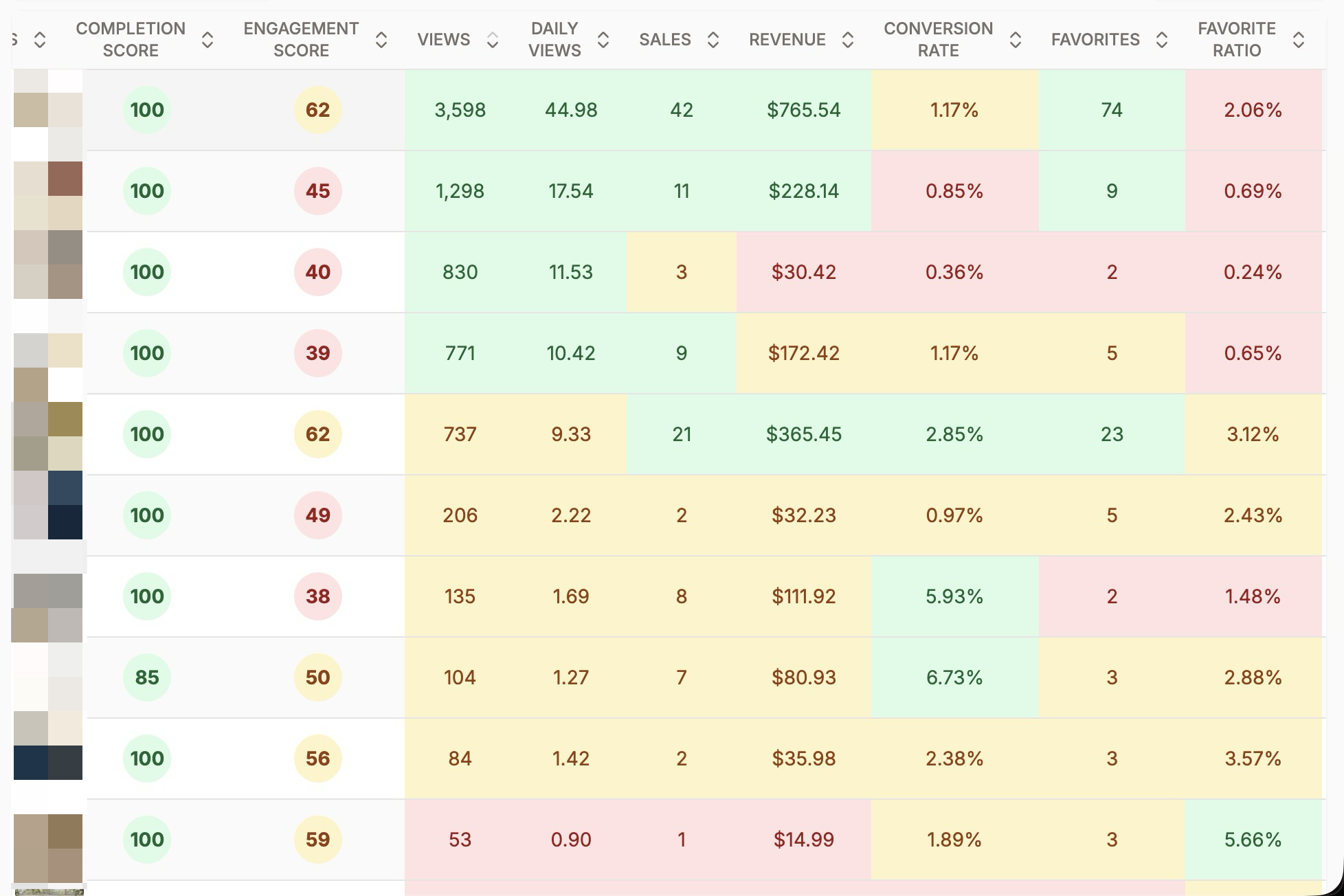
In the table view, each listing shows its stats: views, daily views, sales, revenue, conversion rate, favorites, favorite ratio, listing age, and more. Stats are all-time by default. Once you've been on Listadum long enough for us to gather the data, you'll also see 7-day and 30-day windows.
Act on a single listing
Click a listing to open it in the Listing Editor, where you edit every field in one place (see the Listing Editor article). From a listing's row you can also copy it or create a Template from it.
Act on many listings at once
Select listings with the checkboxes and you can enter Bulk Edit or Bulk Copy, or use the table's options to Export CSV. See the Bulk Edit and Bulk Copy articles for those.
Export CSV
Need your listing data outside Listadum? Select the listings you want with the row checkboxes and export them to a CSV from the table options. If you select the whole page, you can also select every listing that matches your current filters. Before exporting, you can choose which fields will be part of the exported dataset including the fields of your listing, and Listadum statistics .