

Editing images in the Listing Editor
Last updated onImages are the single biggest lever on whether a browser stops and buys. The Images section is where you manage all of a listing's photos, up to 20 of them.
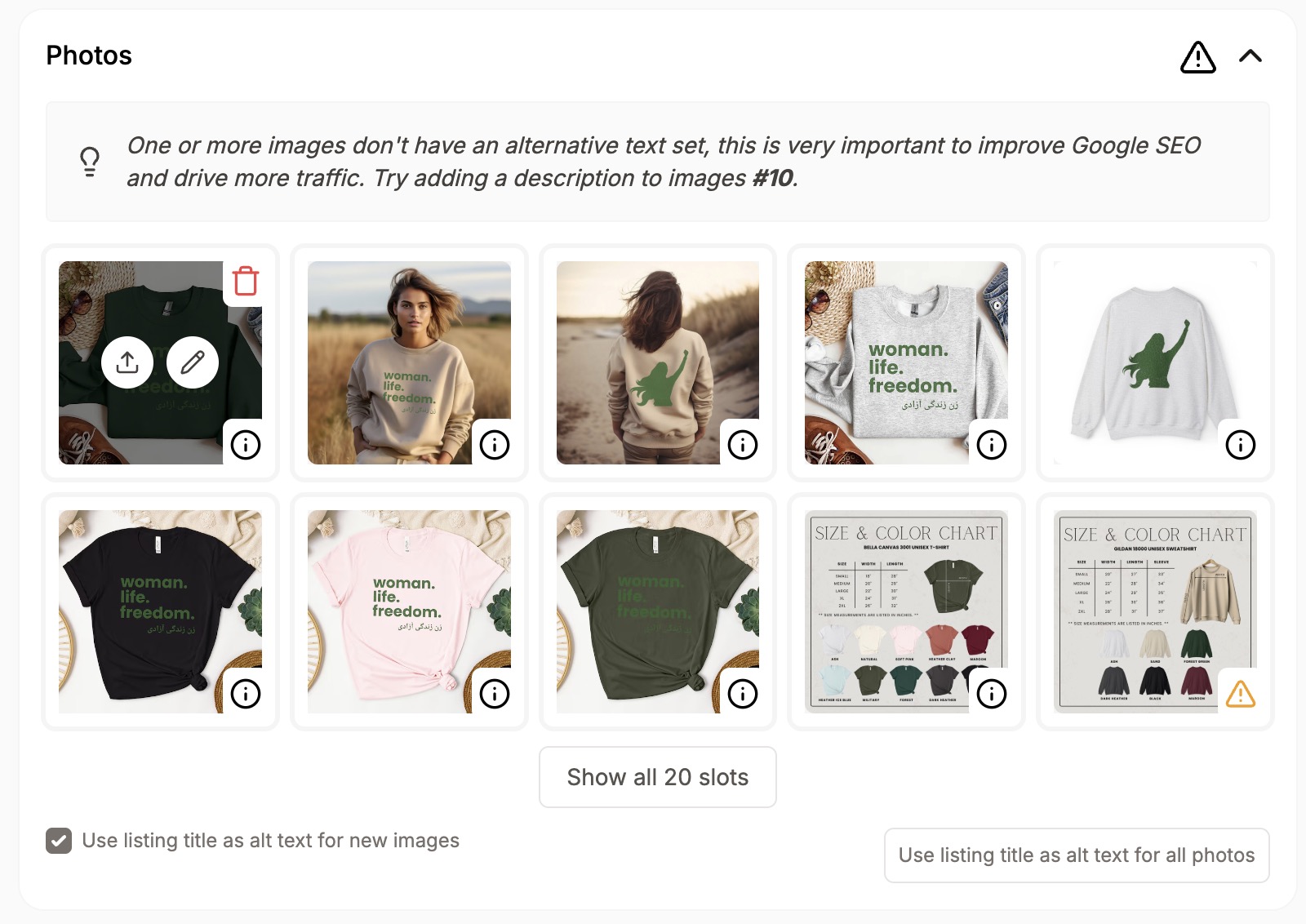
Manage your photos
Reorder images (the first one is your thumbnail), delete the ones you don't want, and upload new ones.
What we recommend
Aim for at least 5 images, and make sure each one is at least 2000px on its shortest side. The section highlights exactly which image has a problem and what to do about it.
Edit any image in place
Open the Photo Editor on any image to edit its alt text, add a badge, or reprocess the image with AI. (See the Photo Editor article for the details.) Reprocessing an image with AI requires the Starter plan or above.
Fix alt text in one click
Missing alt text across the listing? Click "Use listing title as alt text for all photos" to auto-fill every image that's missing it.
Make a small image bigger
When an image is below the recommended resolution, you'll see a "Make bigger" button on it. That upscales the image to Etsy's recommended size in one click. Upscaling requires the Starter plan or above.
Editing, reordering, deleting, uploading, and the "use title as alt text" button are free. Reprocessing with AI and "Make bigger" require the Starter plan or above and may use AI credits.