


Comparing keywords side by side with the Keyword Explorer
Last updated onThe Compare page lets you analyze several keywords in the same view. Each keyword is displayed in its own column, with the same metrics and charts, so you can compare opportunities without opening each keyword one by one.
Use it when you already have a few keyword ideas and want to decide which one looks more promising based on listings, difficulty, views, favorites, price, estimated revenue, trend, demand, and competition.
Add keywords to the comparison
Use the input field to add a keyword. Type one keyword, click Analyze, and Listadum adds it as a new comparison column.
Repeat the same action for every keyword you want to compare.
Compare the main metrics
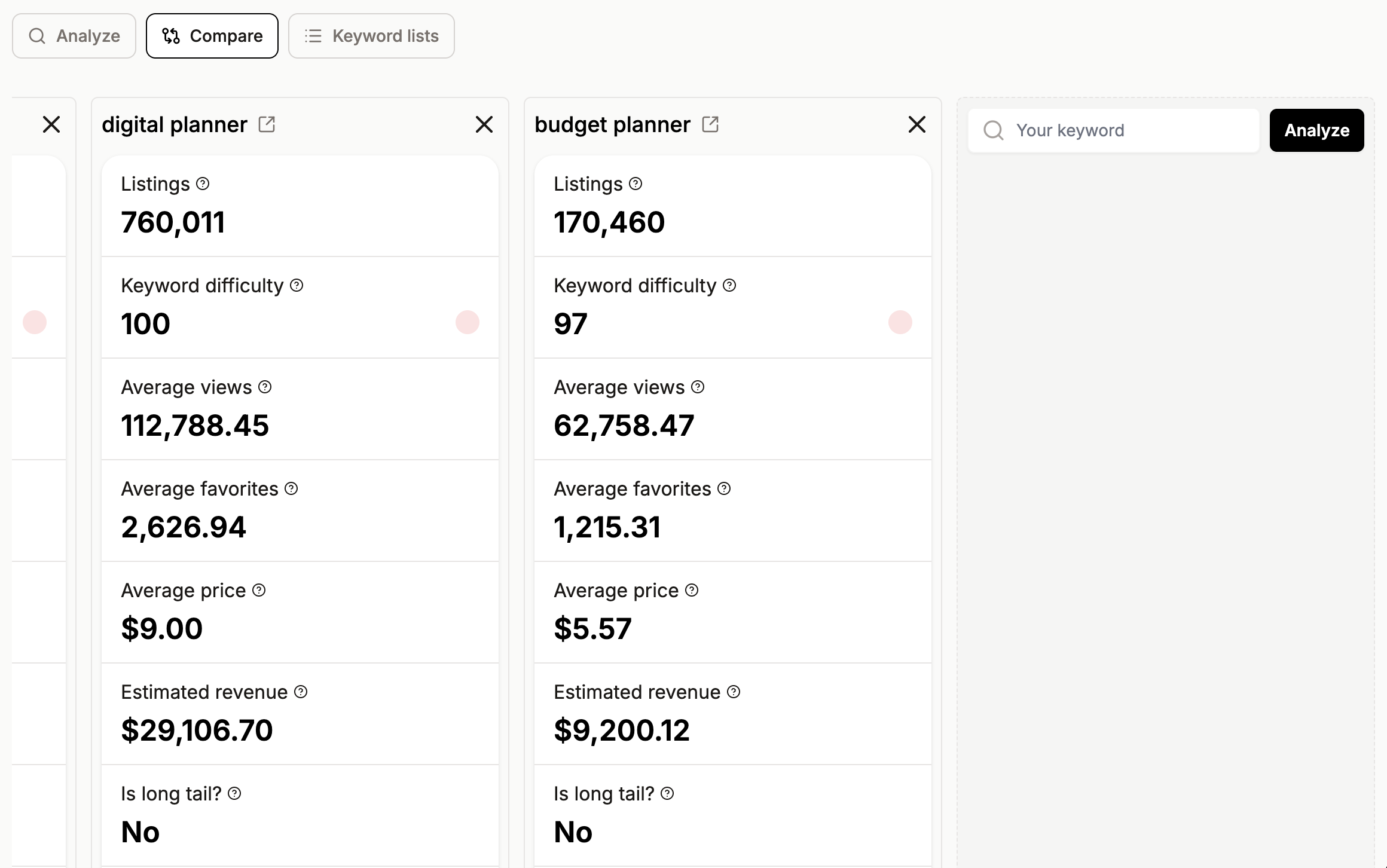
Once a keyword is added, it appears as a column. Each column starts with the keyword name and a link icon that opens the individual keyword analysis page in a new tab.
Each keyword column shows:
Listings: the number of listings positioned on that keyword.
Keyword difficulty: how hard it is to position a listing on the first page of Etsy search.
Average views: the average number of views per listing.
Average favorites: the average number of favorites per listing.
Average price: the average price per listing.
Estimated revenue: the estimated monthly revenue from that keyword.
Is long tail?: whether Listadum considers the keyword a long tail keyword.
Keyword trend: the recent trend based on the last seven days.
Use market saturation
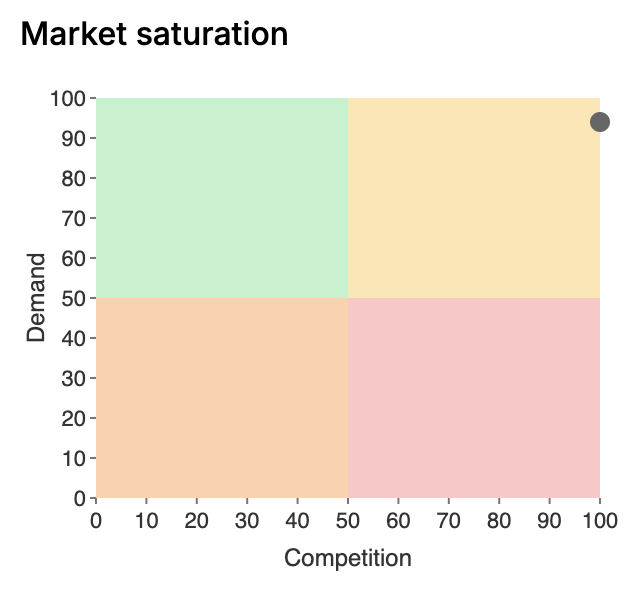
Each keyword column includes a Market saturation chart.
The chart places the keyword on two axes:
Competition: shown on the horizontal axis.
Demand: shown on the vertical axis.
Use this chart to quickly see where each keyword sits compared with its demand and competition level.
Check demand over time
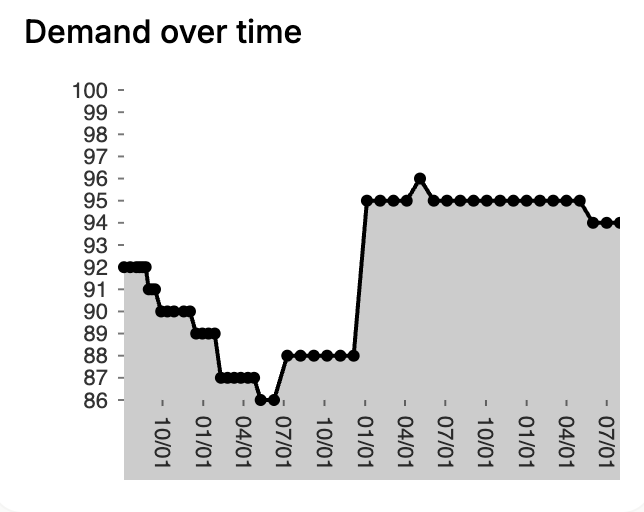
Each keyword column includes a Demand over time chart.
This chart shows how demand has changed over time for that keyword. Use it to compare whether one keyword looks more stable or more active than another.
Check competition over time
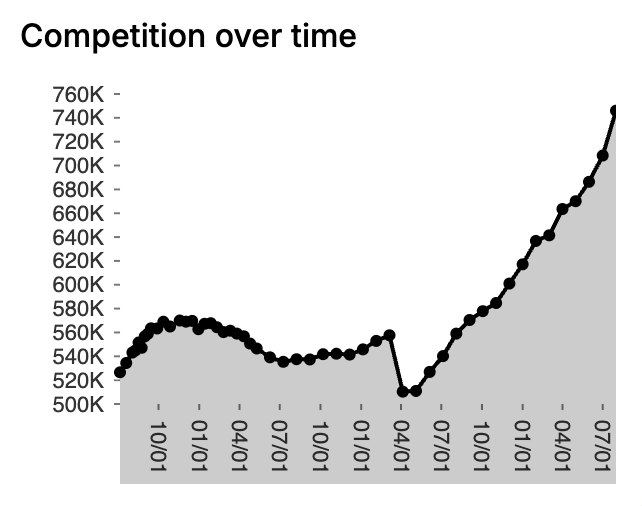
Each keyword column also includes a Competition over time chart.
This chart shows how the number of competing listings has changed over time. Use it together with demand to understand whether a keyword is becoming more or less competitive.
Remove a keyword from the comparison
If a keyword is no longer useful, click the X icon in its column header. The column is removed from the comparison view.
Available on the Starter plan and above.