
We recently hosted a live session with a special guest: Vikash, founder of BulkMockup. The topic was listing images and mockup workflows, and the conversation ended up covering a lot of ground. Common mistakes, smart object templates, creating mockups at scale, AI-generated images, and when to be transparent about all of it.
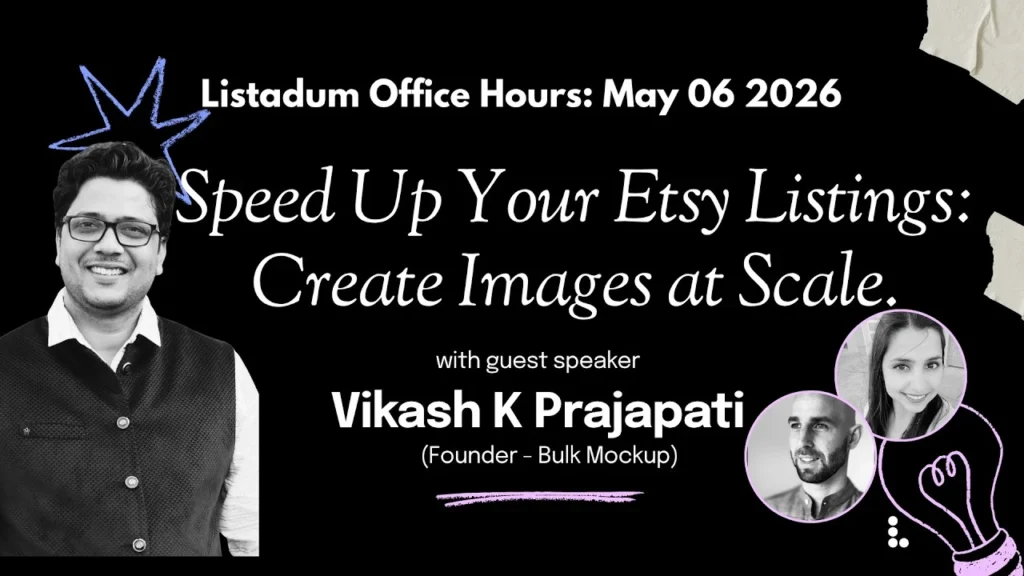
Here is a recap of the session with the key takeaways. You can also watch the full recording on our YouTube channel.
The listings that rank best are the ones that convert best
This is something we say a lot, and Vikash reinforced it perfectly during the session. The listings that end up on page one of Etsy search are not necessarily the prettiest ones. They are the ones that convert the best.
That is a big distinction. You can have beautiful lifestyle photos of your product, but if your images don’t answer the buyer’s questions, they won’t convert as much. And if they don’t convert, Etsy will stop showing them.
Vikash showed a great side-by-side comparison of two phone case listings with nearly identical designs. One had gorgeous lifestyle mockups. The other had infographics, feature callouts, material details, a size chart, and clear benefit statements. The second one had over 2,000 sales. The first one? Barely any.
The takeaway is simple: your listing images are not a gallery. They are a sales pitch. Every image should serve a purpose in the buyer’s decision-making process.
The most common mockup mistakes
Vikash walked through several real examples pulled from live Etsy listings. The patterns he sees over and over again are worth knowing about.
Design inconsistency. When the design looks different across your listing images (different sizes, different positioning, different proportions), it breaks trust. The buyer doesn’t know what they are actually going to receive.
Fake-looking products. If your design looks like it was just pasted on top of a t-shirt with no shadows, no wrapping, no depth, it screams “this is not real.” Buyers pick up on that quickly.
Wrong target audience in your images. If you are selling a “best grandpa ever” shirt and your mockup shows a young 25-year-old model, something is off. Your images should reflect who is actually going to wear or use the product.
Poor color matching. Putting a red design on a red t-shirt, or a dark design on a dark background, makes the product invisible. This sounds obvious, but Vikash showed live listings making this exact mistake.
Designs too small to read. Your design is the product. If buyers can’t see it clearly in the thumbnail or in the listing images, you have already lost them.
Hoarding mockup bundles. This one hit home for a few people on the call. Buying a bundle of 2,000 mockups for $5 feels like a deal, but it often leads to wasted time trying to make generic templates work instead of investing in a few high-quality ones that actually match your brand.
Plan your images before you open any tool
Before touching Canva, Photoshop, or any mockup tool, Vikash recommends a research and planning step that takes maybe 30 minutes but saves hours later.
Search Etsy for the keyword you want to compete on. Scroll through the results and screenshot the thumbnails that grab your attention. Open the top-selling listings and look at their full image sequence. Not just the first photo, but all 10.
You will start to see patterns. What colors work on thumbnails. What types of images the best sellers are using. How they structure the sequence from thumbnail to size chart to lifestyle to infographic.
Once you have gathered enough inspiration, plan out your own image sequence. Decide how many images you need and what each one should show. Thumbnail, lifestyle, feature callout, size chart, color options, care instructions, trust signals. Plan the list first, then go find the right mockup templates for each one.
For a deeper guide on this, we have a free resource that covers the full image strategy: The Etsy Listing Image Playbook.
Smart objects: why the best sellers use them
If you have been making mockups in Canva, you know it gets the job done for simple things. But there is a ceiling.
Canva mockups are basically flat layers. You position your design on top of a photo, maybe adjust the transparency, and that is about it. It works okay for flat products like posters or digital downloads. But for anything with curves, folds, or texture (t-shirts, mugs, tumblers, candles, blankets), the result looks obviously fake.
This is where smart object templates come in. Smart objects are a Photoshop feature (also supported in Photopea, which is free, and Affinity) where the design automatically wraps around the product with realistic shadows, highlights, and distortion. A professional Photoshop artist builds the template once, and then all you do is open the smart object layer, drop in your design, save, and the mockup looks like a real product photo.
Vikash demoed this live and the difference is clear. The wrapping around a mug, the way a design follows the folds of a t-shirt, the shadows that fall naturally. These are things you cannot replicate by dragging a PNG onto a Canva frame.
The investment is not huge either. Good smart object templates from places like Creative Market or Creatsy run around $15 to $20 each. Compare that to a $10 bundle of 2,000 flat PNGs that all look the same, and the math makes sense. One good template that makes your product look real is worth more than a thousand that make it look fake.
Creating mockups in bulk
Once you have your templates and your designs, the next bottleneck is volume. If you sell 50 designs on 6 different t-shirt colors, that is 300 images. One at a time, that is days of work.
Canva’s bulk create feature. Vikash showed a lesser-known Canva feature where you can create a spreadsheet inside Canva, load your designs into it, connect them to frame elements in your template, and generate all variations at once. It has some limitations (designs center instead of aligning from the top, and loading designs into the spreadsheet is clunky), but for Canva users it is a solid option.
BulkMockup’s web app. This is Vikash’s tool. You upload your smart object PSD templates, upload your design files, configure alignment and export settings, and click generate. It processes every combination and exports them into organized subfolders, one per design, ready to upload. And it all happens in the browser, so you don’t even need Photoshop installed. That said, there is a Photoshop plugin available as well where all the exports happen on your computer.
The output is a folder of folders. Each subfolder contains the complete set of mockup images for one listing. Which brings us to the next step.
From mockup folders to live listings
This is where we showed something new during the session. Once you have your mockup folders exported (whether from BulkMockup, Photoshop, or any other tool), you still need to create the actual listings on Etsy. And doing that one by one is painful.
We recently launched Bulk Create in Listadum, which lets you drag and drop a folder of folders directly into Listadum. Each subfolder becomes a listing draft. The images get attached automatically. From there you can apply templates, use the keyword explorer, check your completion score, and ship the whole batch to Etsy at once.
The workflow goes: design your images in bulk, export them into folders, drag those folders into Listadum, polish and publish. What used to take days can now take an afternoon.
What about AI mockups?
This came up naturally during the session, and the conversation was honest.
Six months ago, AI-generated product images were easy to spot. Today, with models like Gemini, Midjourney, and others, the gap is closing fast. Vikash acknowledged that AI is here to stay and that sellers need to accept it rather than fight it.
But there is a nuance that matters a lot on Etsy specifically. Etsy buyers are looking for real products from real people. They want to connect with an artisan, a creator, a small business. When every image in a listing looks too perfect, too polished, too AI, something feels off. Buyers pick up on that uncanny quality even if they can’t articulate what is wrong.
We see this regularly. Sellers come to us saying their new shop is not converting, and when we look at their listings, every single image is clearly AI-generated. It is too perfect. It does not feel real.
The advice from the session: if you are going to use AI for your images, don’t generate from scratch using text prompts. Instead, start with a real reference image (a photo you like, a style you want to replicate) and use AI to place your actual product into that context. The result is much more believable. Tools like Google’s Gemini are particularly good at this when you give them a base image plus your product photo.
And here is a take from Vikash that stuck with me:
“If you know the basics, AI is your arsenal. If you don’t know the basics, AI will make you dumb.”
The point is that AI is a tool, not a shortcut. You still need to understand what makes a good listing image before you can use AI effectively to create one.
Be transparent about your mockups and AI images
This is important enough that we will probably write a full blog post about it.
Should you tell buyers that your listing images are mockups or AI-generated? Yes. Not as the first line in your description, but somewhere in there, be honest about it.
Etsy buyers expect transparency. If a buyer receives a product that does not look like the photos, they can request a refund and you will eventually be penalized for it. Vikash mentioned that even in his own experience, buyers have reached out asking how images were created because they want to support sellers who are genuine.
A simple line in your description goes a long way. Something like “Product images are digitally created to show what the finished product will look like. Actual colors may vary slightly.” It sets the right expectation without scaring anyone away.
Every AI tool includes a disclaimer that it can make mistakes. Your listings should have a similar level of honesty. This is not about discouraging the use of mockups or AI. It is about building trust.
We think this topic deserves a deeper dive, so expect a separate post on it soon.
Try BulkMockup
If you want to automate your mockup workflow, especially with smart object templates, check out Vikash’s tool.
Sign up for bulkmockup.com to automate your mockups. Use code LISTADUM to try it for $1 for the first month.
Vikash also has a YouTube channel full of tutorials on smart objects, Canva bulk create, and mockup workflows in general. Worth checking out even if you are not using BulkMockup, because the knowledge applies to whatever tools you use.
Watch the full session
This post covers the highlights, but there was a lot more in the conversation, including live demos, audience Q&A about jewelry mockups, discussions about video mockups, and more.
📺 Watch the full recording on YouTube
We host live sessions like this twice a month. One is usually a listing critique where you can drop a link and get feedback, and the other focuses on a specific topic like today’s.
👉 Come join us for the next one.
Want better listing images, faster?
Listadum scores every listing and shows you exactly what to fix, ranked by impact.
Start free · no credit card · connect your real Etsy shop in minutes